Commands
Commands
By pressing ^ Ctrl+p you can access the command palette from where you can perform most of the chat actions. The following commands are available:
New chat- create a new chat sessionEdit chat parameters- edit the current chat session (change system prompt, tools, parameters, or thinking)Toggle thinking- turn thinking mode on or off for the current session (not persisted)Rename chat- rename the current chat sessionExport chat- export the current chat session as markdownDelete chat- delete the current chat sessionClear chat- clear the chat history, preserving the chat configuration (provider, model, system prompt, tools, parameters, and thinking)Regenerate last message- regenerates the last assistant message. Useful if you want to change the system prompt or parameters, or just try again.Prompt history- browse previously sent prompts in the current chat and re-use one.Show logs- shows the logs of the current oterm session.
The palette also surfaces Textual's built-in commands (Theme, Quit, Keys, Screenshot, Maximize/Minimize).
Keyboard shortcuts
The following keyboard shortcuts are supported:
-
^ Ctrl+q - quit
-
Enter - send the message
- Shift+Enter or ^ Ctrl+m - insert a newline; the prompt grows to fit (up to 10 lines)
- ^ Ctrl+i - select an image to include with the next message
- ↑/↓ (while messages are focused) - navigate through the messages
- ^ Ctrl+o - copy the last message of the current chat to the clipboard
-
^ Ctrl+l - show logs
-
^ Ctrl+n - open a new chat
-
^ Ctrl+t - toggle thinking mode for the current session (not persisted)
-
^ Ctrl+Tab - open the next chat
- ^ Ctrl+Shift+Tab - open the previous chat
The prompt is always a multi-line input that auto-grows as you type or paste; long lines wrap. To recall a previously sent prompt, open Prompt history from the command palette (^ Ctrl+p).
While the model is inferring the next message, you can press Esc to cancel the inference.
Note
If the key bindings clash with your terminal, it is possible to change them by editing the configuration file. See Configuration.
Copy / Paste
It is difficult to properly support copy/paste in terminal applications. You can copy blocks to your clipboard as such:
- ^ Ctrl+o will copy the last message of the current chat to the clipboard.
- clicking a message will copy it to the clipboard.
- clicking a code block will only copy the code block to the clipboard.
For most terminals there exists a key modifier you can use to click and drag to manually select text. For example:
* iTerm Option key.
* Gnome Terminal Shift key.
* Windows Terminal Shift key.
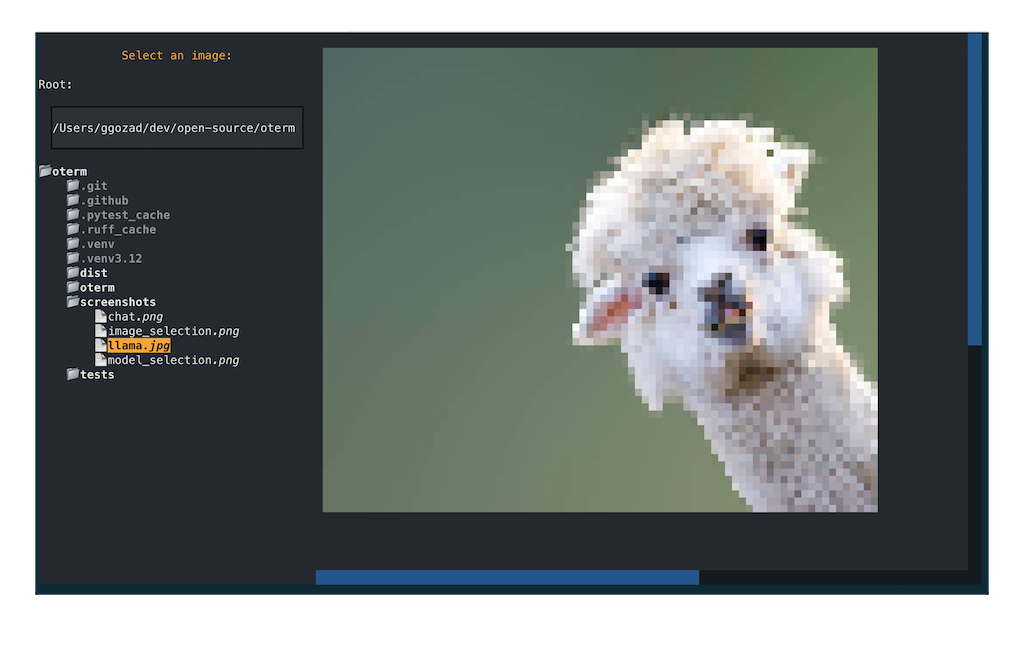 The image selection interface.
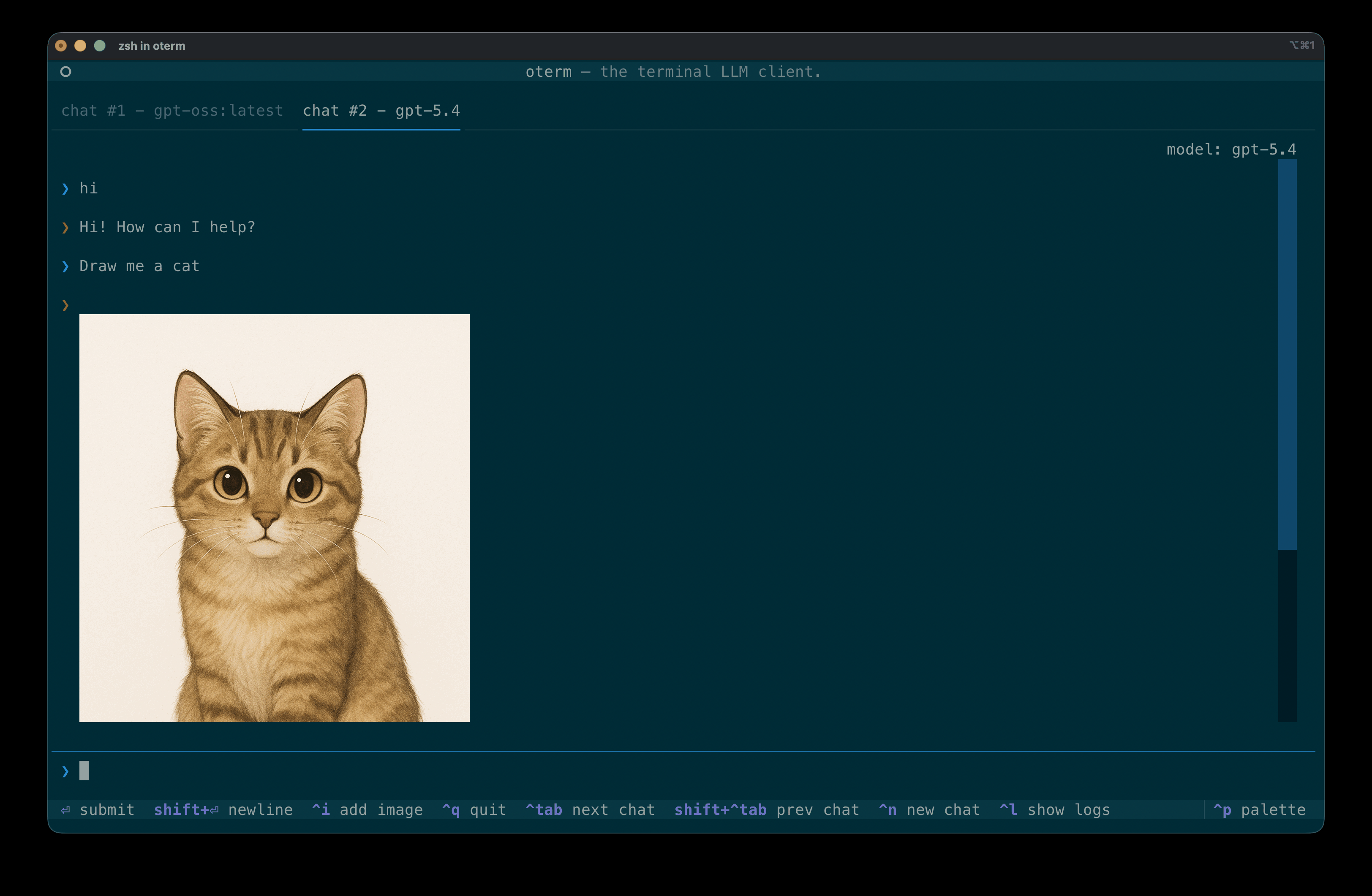 Images returned by the model are rendered inline in the chat. Click an image to save it to disk.